
Overview
Microsoft Excel remains the primary tool for financial modeling and performance tracking. Looker provides governed web-based analytics. Users often move data to Excel for offline work or model integration.
The Looker Excel connector links Looker and Excel. It exports a Looker Explore query to Microsoft Excel for Windows through an ODC file and an ODBC driver. It enables direct data transfer. This method avoids manual exports and version errors. Users open Looker Explore results in Excel via a secure ODC file.
SquareShift implements this integration for clients. It combines Looker data governance with Excel flexibility. The setup:
- Streamlines workflows.
- Reduces errors.
- Accelerates decision-making for finance, operations, and analytics teams.
What Is the Looker Excel Connector?
The Looker-Excel Connector exports Looker Explore queries to Microsoft Excel for Windows. Enable the feature to display an “Open in Excel” option in the Explore gear menu.
Select the option to download an ODC file. This file stores the parameters for Excel to retrieve data from Looker via an ODBC driver. Users can refresh the connection in Excel to access current data.
SquareShift recommends this setup for organizations that use Looker for centralized modeling and Excel for downstream analytics or reporting.
Requirements
Verify the following requirements before starting:
| Requirement | Details |
|---|---|
| Operating System | Windows PC (32-bit or 64-bit) |
| Looker Version | 25.16 or later |
| Excel BI Connector | Enabled by an admin under BI Connectors in Looker |
| User Permissions | Looker account with explore access to the relevant LookML model |
| ODBC Driver | Installed on the local Windows machine |
This connector supports Windows operating systems only. It does not support macOS or Linux.
How to Set Up the Looker Excel Connector
After you meet the requirements and install the ODBC driver, connect Looker data to Excel using these steps:
Step 1: Run the Explore Query
Log in to your Looker instance.
Open an Explore, build the query, and run it.
Select Open in Excel from the Explore menu.
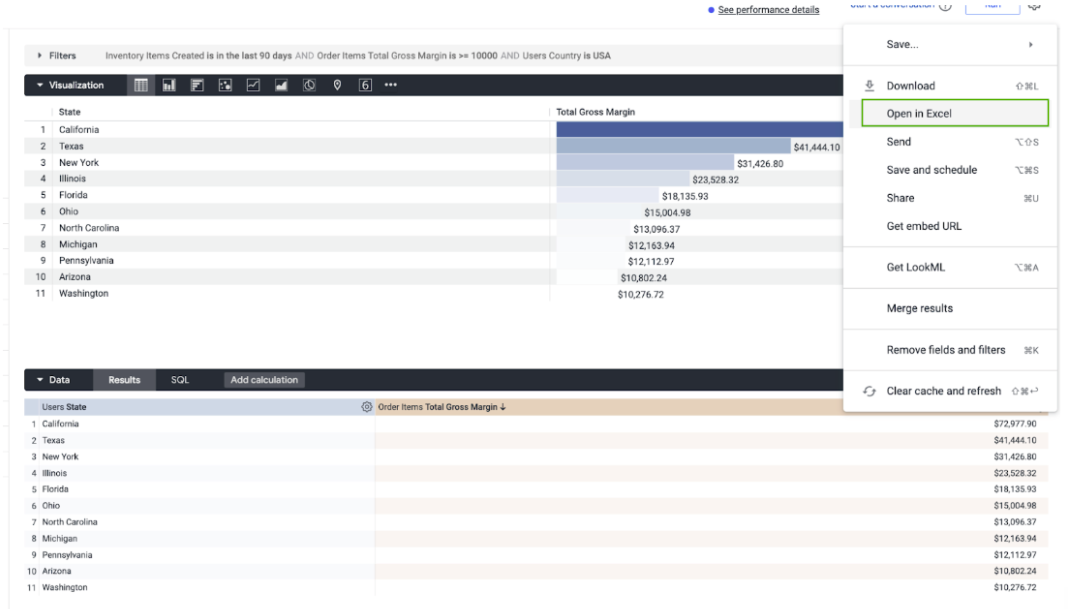
Looker opens the Excel export dialog. Configure the export parameters.
Step 2: Set Row and Column Limits
In the Open in Excel dialog, enter the maximum number of rows and columns. These values define the dataset size that Excel retrieves.
Step 3: Download the ODC File
Select Download. Looker creates an ODC file and saves it to your computer. This file holds the metadata and connection settings that Excel uses to access data through the ODBC driver.
Double-click the file to open it in Microsoft Excel.
Step 4: Enable the data connection
- Open the ODC file in Excel.
- If a Security Notice appears, click Enable.
This action authorizes secure communication between Excel and the Looker ODBC source.
Step 5: Configure the Google Looker DSN
Windows will prompt you to configure the Data Source Name (DSN). Complete the setup as follows:
- Select OAuth from the Auth Type list.
Select Login to open the browser authentication window.
Sign in to the Looker account. Wait for the success message.
Close the browser window. Return to the DSN dialog.
Select OK to save the settings.
- OAuth is the recommended authentication method.
- Use Basic Auth if API credentials are available.
If Excel shows a prompt, confirm the overwrite of the existing DSN with the new configuration.
This step creates a secure, authenticated link between Excel and Looker.
Step 6: Load Data into Excel
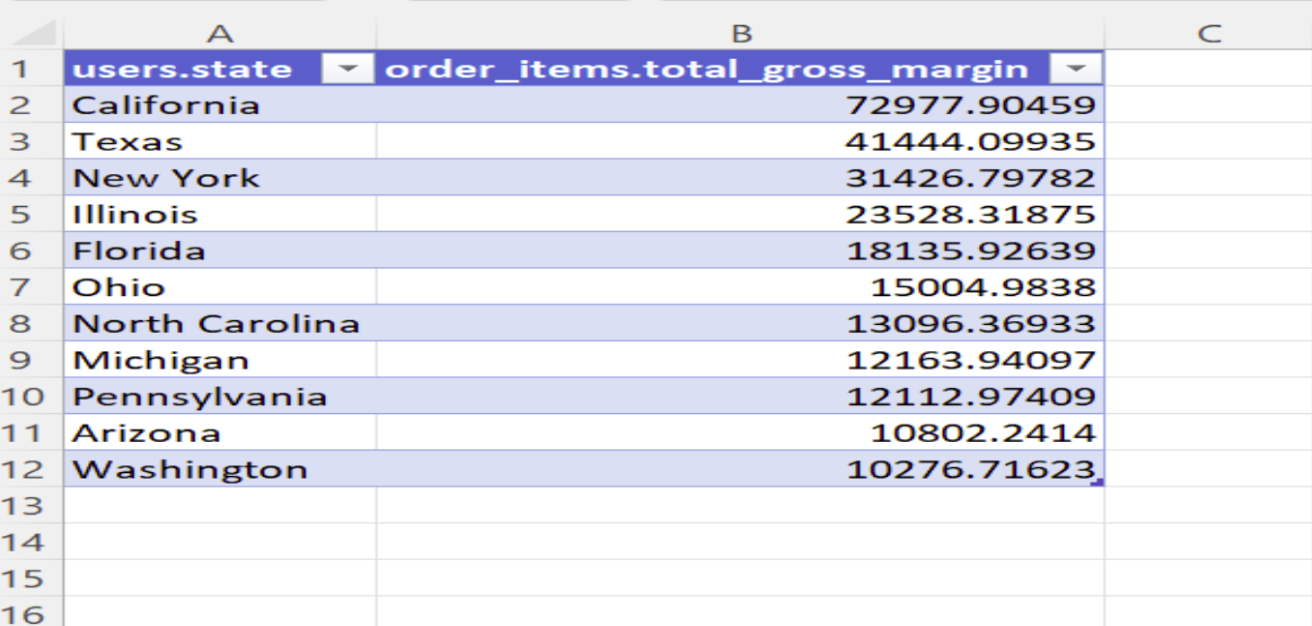
After setup, Excel runs the Looker query and imports data into a new pivot table. Users analyze, filter, and visualize the data using Excel tools. The connection to the Looker source remains live.
Step 7: Refresh the data
Update results using either method below.
- Refresh in Excel: Select Refresh on the Excel ribbon. The system re-runs the Looker query and imports the latest data.
- Edit in Looker: Change dimensions, filters, or metrics in the Looker Explore interface. Select Open in Excel to re-export.
Each ODC connection opens in a new Excel workbook by default. Use native Excel functions to move or copy pivot tables between workbooks to consolidate reports.
Looker Excel Connector Limitations
The Looker-Excel Connector has the following limitations:
- Platform restriction: Supports Windows only. It does not support macOS or Linux.
- Unsupported Explore features: Table Calculations, Pivoted Columns, and Table Calculations / Pivoted Columns.
Remove these elements from your Explore query before using Open in Excel to ensure compatibility.
Business Applications
SquareShift implemented the Looker-Excel Connector for organizations in multiple industries. Common use cases include:
- Financial Planning and Analysis (FP&A): Connect Looker data to Excel models for forecasting, variance analysis, and performance tracking.
- Operational Performance Monitoring: Allow operations teams to analyze Looker data in Excel for daily management and KPI reviews.
- Data Validation and Ad Hoc Reporting: Enable analysts to validate datasets in Excel or run specialized calculations without manual exports.
This approach ensures metric consistency while preserving the analytical flexibility of Excel.
Related guides: how to use forecasting in Looker and how to compare metrics across time in Looker.
Governance and Security Requirements
SquareShift requires governance and security controls for external BI connectors. Use OAuth for secure, tokenized access. Define policies for:
- Authorized Excel connector users
- Data refresh frequency
- Manage and retain downloaded ODC files
These steps ensure compliance with data policies and alignment with Looker access controls.
Conclusion
The Looker-Excel Connector links governed Looker data to Microsoft Excel. This setup supports in-depth analysis while maintaining data governance standards.
SquareShift implements and optimizes this integration for analytics modernization. We ensure teams access trusted data in Looker dashboards or Excel models.
Combining Looker governance with Excel familiarity creates an efficient, consistent, and accessible analytics ecosystem.
See our advanced Looker analytics services for more on governed Looker data.