
Value of Templates in Looker Studio Workflows
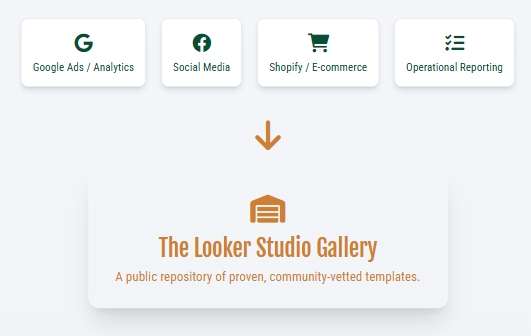
Looker Studio templates are pre-configured dashboard structures that analysts connect to their own data. Manual dashboard creation consumes significant time. Teams often duplicate layout structures and reconfigure data connections for each report. This process delays delivery and creates inconsistent visual standards across departments.
Templates provide pre-configured dashboard structures. Analysts can replace placeholder data with source connections and adjust visual elements. This approach removes the need to design from blank canvases. It ensures consistent reporting standards and reduces setup time.
Looker Studio Gallery Overview
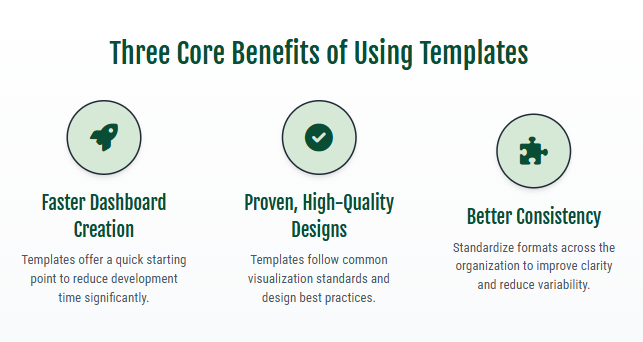
The Looker Studio Gallery is a public repository of templates developed by Google and the community. Users browse pre-built dashboards, sample reports, and industry-specific designs.
Available templates include:
- Google Analytics
- Google Ads
- YouTube analytics
- Search Console
- Facebook, Instagram, and LinkedIn
- Shopify and WooCommerce
- Marketing and operations reporting
The Gallery accelerates Looker Studio dashboard creation while enforcing design best practices. It also functions as a reference for analysts to study professional dashboard structures.
Reasons for Using Looker Studio Templates
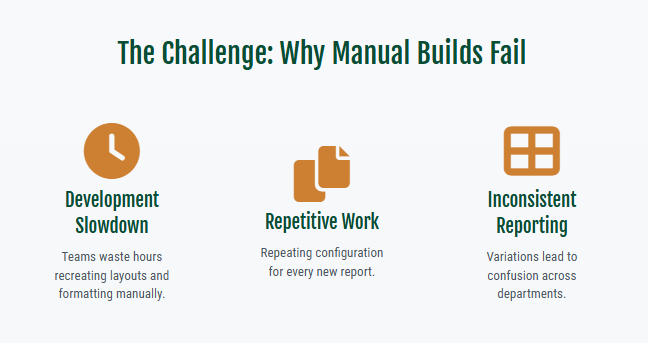
1. Rapid Dashboard Creation
Templates provide immediate starting points. Analysts select pre-built dashboards and connect their data. This removes repetitive design work and reduces development time.
2. Validated, High-Quality Designs
Templates provide concrete examples of Looker Studio dashboards. They follow standard visualization practices and offer a practical method for learning effective report layouts.
3. Improved Consistency Across Teams
Organizations with multiple dashboards can standardize formats using shared templates. This improves clarity and reduces variability in reporting.
4. Integration With Popular Data Sources
Templates include pre-configured connections for widely used platforms. Users replace the sample data source to connect their own datasets.
How to Use Looker Studio Templates
Step 1: Select a Template
Browse the Looker Studio Gallery. Select a template that matches your use case. These dashboards provide a base for your report.
Step 2: Connect Your Data
Click “Use my own data” in the upper right to replace template data. If the template has multiple sources, click each “Replace Data” button. Connect each source to your data.
Step 3: Connect Data Source
Select “Add data to report.” Choose a source from “My data sources.” Select “Add.” This action replaces the template data source.
Step 4: Check Data Source Status
A status indicator appears beside the “Add Data” button:
- An orange dot indicates view-only access to the default source. Copying the template may cause errors.
- A green dot confirms full access to the new source.
Proceed with customization when all indicators show green.
Creating a New Data Source for a Template
If the dataset is not connected to Looker Studio:
- Open the selected Looker Studio template.
- Select “Use my own data”.
- Select the source account or platform.
- Click “Add” to connect the data source to the template.
The template updates automatically.
Edit and Share Templates
After you replace all data sources:
- Select "Edit and share."
- Adjust layouts and charts.
- Add pages as needed.
- Configure settings for your business requirements.
- Share the report using standard Looker Studio permissions.
Publish a Custom Template to the Looker Studio Gallery
Looker Studio converts any report into a template. Perform these steps to publish.
Open the Target Report
Select the report to publish.
Step 2: Append “/preview” to the URL
Add “/preview” to the URL to convert the report into a shareable template format.
Step 3: Submit to the Gallery
Submit the template to the Gallery. Google reviews submissions. Approved templates appear publicly.
How Templates Improve Reporting Efficiency
Templates improve efficiency. They accelerate onboarding. They standardize best practices. They reduce development time. Teams use Looker Studio templates to standardize reporting. This practice prevents common errors in custom report creation.
Organizations use ready-made Looker Studio dashboards. They use sample dashboards. This approach maintains consistency. It supports analytics program scaling.
Conclusion
Looker Studio templates speed dashboard construction. They improve reporting efficiency. The Looker Studio Gallery offers three benefits:
- High-quality templates
- Clear structures
- Immediate dataset integration
These tools help analysts, marketers, and leaders. They reduce manual work. They ensure consistency.
Integrate Looker Studio templates into your workflow. They support three goals:
- Accuracy
- Speed
- Standardization
For help with Looker reporting beyond templates, see our advanced Looker analytics services.
Related guides: Looker Studio community visualizations for custom reporting and how to compare metrics across time in Looker.